Setting Up Moneybird for Bol.com: A Step-by-Step Guide
BolMoneybird Team
team@bolmoneybird.nl
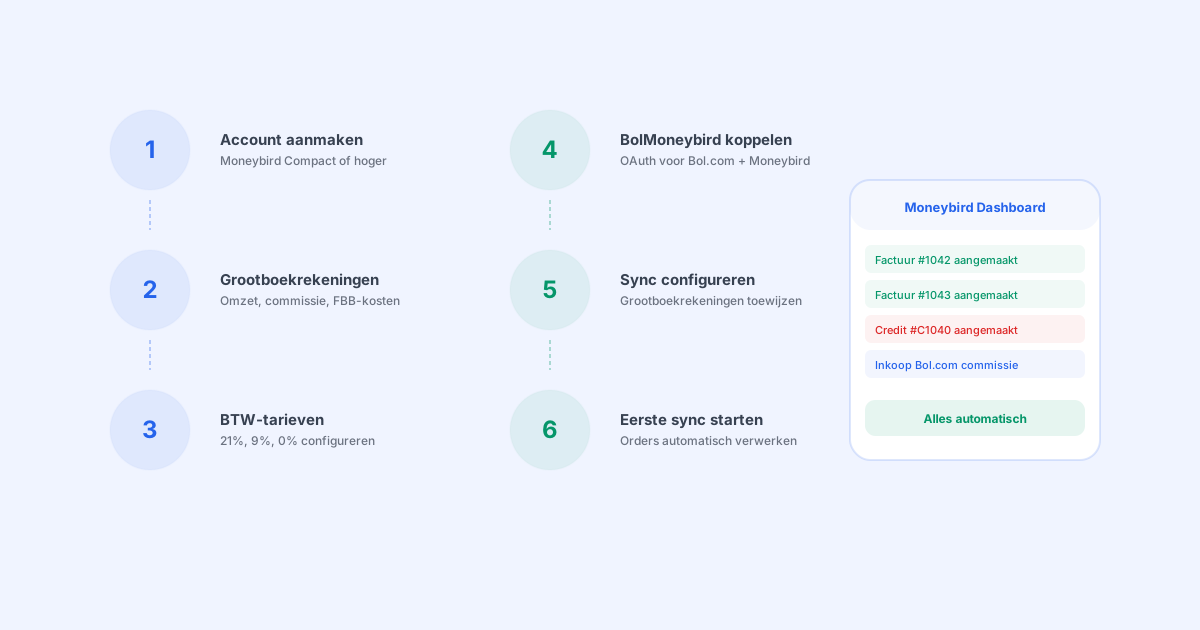
Moneybird is one of the most popular accounting tools in the Netherlands, and for good reason: it’s user-friendly, affordable, and offers excellent capabilities for e-commerce entrepreneurs. But to get the most out of it for your Bol.com sales, you need to set it up properly. In this step-by-step guide, you’ll learn how to configure Moneybird for your Bol.com store and how to connect it with BolMoneybird for automatic synchronization.
Before You Start: What Do You Need?
Make sure you have the following at hand:
- A Moneybird account (at least the Compact plan for API access)
- A Bol.com seller account with active sales
- Your Chamber of Commerce (KvK) number and business details
- Your VAT number
- Insight into which product categories you sell (for the VAT settings)
Step 1: Create and Set Up Your Moneybird Account
If you don’t have a Moneybird account yet, this is the first step.
Create an Account
- Go to moneybird.com and create an account
- Choose the Compact plan or higher (this is required for API integrations)
- Fill in your business details: company name, address, Chamber of Commerce number, VAT number
- Choose your fiscal year (the default is the calendar year)
Verify Your Business Settings
Go to Settings > Business details and verify:
- Company name and address are correct
- Chamber of Commerce number is filled in
- VAT number is correct (format: NL + 9 digits + B + 2 digits)
- Default currency is set to EUR
- Invoice language is set to Dutch
Link Your Bank Account
It’s advisable to link your business bank account to Moneybird:
- Go to Settings > Bank accounts
- Add your business bank account
- Activate automatic bank import if available for your bank
This makes it easier later on to match payments with invoices.
Step 2: Set Up Ledger Accounts
Ledger accounts are the backbone of your bookkeeping. They determine where income and expenses are recorded. For Bol.com sales, we recommend the following structure:
Revenue Accounts
| Ledger Account | Type | Purpose |
|---|---|---|
| Bol.com sales revenue | Revenue | Sales income from Bol.com orders |
| Shipping fee revenue | Revenue | Shipping charges billed to customers |
Expense Accounts
| Ledger Account | Type | Purpose |
|---|---|---|
| Bol.com sales commission | Expenses | Commission per sale |
| FBB fulfillment costs | Expenses | Handling and shipping (with FBB) |
| FBB storage costs | Expenses | Warehouse storage costs (with FBB) |
| FBR shipping costs | Expenses | Own shipping costs (with FBR) |
How Do You Create a Ledger Account?
- Go to Settings > Ledger accounts
- Click “New ledger account”
- Enter the name (e.g. “Bol.com sales revenue”)
- Choose the type: Revenue or Expenses
- Choose the correct category (Cost of sales, Purchase costs, etc.)
- Click “Save”
Repeat this for all required accounts.
Step 3: Configure VAT Rates
Moneybird comes with the standard Dutch VAT rates already configured, but it’s good to verify this.
Check Existing Rates
- Go to Settings > VAT rates
- Verify that the following rates exist:
- 21% VAT — for standard products
- 9% VAT — for reduced rate (books, food, etc.)
- 0% VAT — for exempt or exported products
VAT Rate Per Ledger Account
You can set a default VAT rate per ledger account:
- “Bol.com sales revenue” → default 21% (or 9% if you primarily sell books/food)
- “Bol.com sales commission” → 21% (commission is always 21%)
- “FBB fulfillment costs” → 21%
This saves time when manually creating invoices, though BolMoneybird fully automates this.
Belgian VAT (for Sellers Who Also Ship to Belgium)
If you also sell via Bol.com Belgium and exceed the OSS threshold (EUR 10,000), you need to set up Belgian VAT rates:
- 21% Belgian VAT — standard rate
- 6% Belgian VAT — reduced rate
In Moneybird, you can create these as separate VAT rates.
Step 4: Create a Contact for Bol.com
In Moneybird, create a contact for Bol.com as a supplier. This is needed for purchase invoices (commissions, FBB costs, monthly invoices).
- Go to Contacts > New contact
- Fill in:
- Company name: Bol.com
- Type: Supplier
- Address: Papendorpseweg 100, 3528 BJ Utrecht
- Chamber of Commerce: 61204714
- VAT number: NL854134270B01
- Click “Save”
Step 5: Connect BolMoneybird via OAuth
Now that Moneybird is properly set up, it’s time to connect BolMoneybird for automatic synchronization.
Step 5a: Create a BolMoneybird Account
- Go to bolmoneybird.nl and create an account
- Choose the plan that fits your order volume
- Confirm your email address
Step 5b: Connect Bol.com
- In BolMoneybird, go to Settings > Integrations
- Click “Connect Bol.com”
- You’ll be redirected to the Bol.com login screen
- Log in with your Bol.com seller credentials
- Authorize BolMoneybird to access your seller data
- You’ll be redirected back to BolMoneybird — the connection is active
Step 5c: Connect Moneybird
- In BolMoneybird, go to Settings > Integrations
- Click “Connect Moneybird”
- You’ll be redirected to the Moneybird authorization screen
- Log in with your Moneybird credentials
- Select the correct administration (if you have multiple)
- Authorize BolMoneybird
- You’ll be redirected back to BolMoneybird — the connection is active
Both connections use OAuth 2.0, which means BolMoneybird never stores your password. You can revoke authorization at any time.
Step 6: Configure Synchronization Settings
After connecting Bol.com and Moneybird, you need to configure the synchronization settings in BolMoneybird.
Assign Ledger Accounts
Map the Moneybird ledger accounts to the appropriate BolMoneybird functions:
| BolMoneybird Setting | Moneybird Ledger Account |
|---|---|
| Product revenue | Bol.com sales revenue |
| Shipping revenue | Shipping fee revenue |
| Commission costs | Bol.com sales commission |
| FBB costs | FBB fulfillment costs |
| Storage costs | FBB storage costs |
VAT Settings
Configure the VAT mapping:
- Default VAT rate: choose 21% if you primarily sell standard products
- Automatic VAT mapping: enable this option for automatic detection via EAN and title analysis
- Override VAT rate per product: optional, for products where automatic detection falls short
Return Processing
Choose how returns are handled:
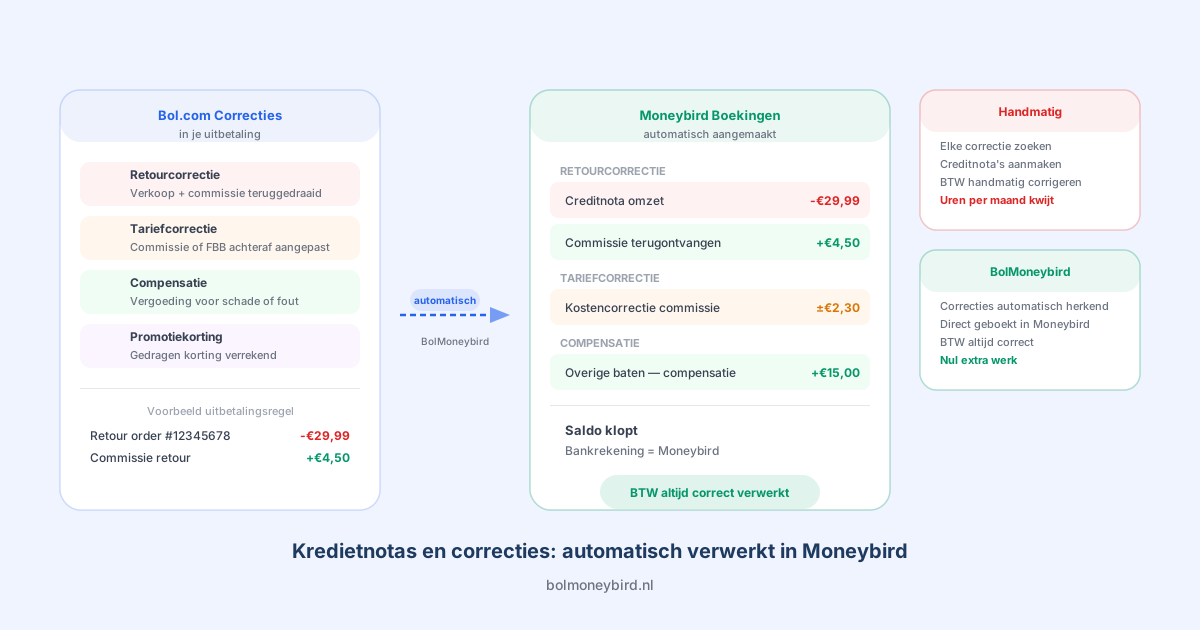
- Automatic credit invoices: on (recommended)
- Link to original invoice: on (recommended)
Invoice Import
Configure the automatic Bol.com invoice import:
- Automatic import: on (recommended)
- PDF as attachment: on (recommended)
Sync Interval
Choose how often BolMoneybird checks for new orders:
- 5 minutes (recommended for the Pro plan — most up-to-date)
- 15 minutes (available in the Starter plan)
- 30 minutes (if you prefer less frequent synchronization)
Step 7: Run the First Synchronization
Now that everything is configured, you can start the first synchronization:
- Go to the BolMoneybird dashboard
- Click “Start synchronization”
- BolMoneybird retrieves all recent orders from Bol.com
- A sales invoice is created in Moneybird for each order
- Commissions are created as purchase invoices
- Returns are processed as credit invoices
The first synchronization may take a few minutes, depending on the number of orders. After that, everything runs automatically.
Check the Results
After the first synchronization, it’s wise to verify:
- Open Moneybird and go to Sales > Invoices
- Check that the sales invoices have been created correctly
- Verify the amounts, VAT rates, and customer details
- Go to Purchases > Invoices and check the commission bookings
- Review whether any credit invoices have been created correctly
If everything looks good, your setup is complete. From now on, everything runs automatically.
Frequently Asked Questions About Setup
Which Moneybird Plan Do I Need?
You need at least the Compact plan for API integrations. The Extended plan offers additional features such as multiple users and advanced reporting.
Can I Connect Multiple Bol.com Accounts?
Yes, BolMoneybird supports multiple Bol.com seller accounts. You can connect them all to the same or different Moneybird administrations.
What If I’ve Already Created Invoices Manually?
BolMoneybird detects existing invoices and won’t create duplicates. You can safely switch over without double bookings.
How Long Does the Installation Take?
The complete setup — from configuring Moneybird to the first synchronization — takes an average of 15-20 minutes. The hardest part is choosing the right ledger accounts, and this article helps you with that.
Conclusion
Properly setting up Moneybird for your Bol.com sales is the foundation for streamlined bookkeeping. By configuring the right ledger accounts, VAT rates, and contacts, and then connecting BolMoneybird for automatic synchronization, you’ll never have to worry about your accounting again. The one-time setup takes 15-20 minutes, and after that it saves you hours every week. Get started with BolMoneybird and experience how simple it is.
Tags
Share