Bol.com Payout Specification Decoded: Every Fee Type Explained
BolMoneybird Team
team@bolmoneybird.nl
Every week or fortnight, Bol.com deposits a payout into your bank account. Alongside the transfer, Bol.com sends a payout specification: a detailed breakdown of every transaction included in that payment. Many sellers open the document, see dozens of unfamiliar line items, and close it again. Too complicated, too many terms that are never explained anywhere.
Yet the payout specification is one of the most important documents for your bookkeeping. If you do not understand what it contains, you book costs incorrectly, miss tax deductions, and your accounts cannot be reconciled with your bank statement. In this article we explain every fee type and show you exactly how to book each one in Moneybird.
What Is the Bol.com Payout Specification?
The payout specification is the detailed statement that accompanies each transfer Bol.com makes to your bank account. It contains every settlement item for the payment period: sales revenue, deducted commissions, logistics costs, returns, and more.
You can download the payout specification through the Bol.com seller portal under Financial > Payment overviews. You can choose between a PDF version and a CSV export. For bookkeeping purposes the CSV is most practical: you can load it into a spreadsheet or process it automatically with software such as BolMoneybird.
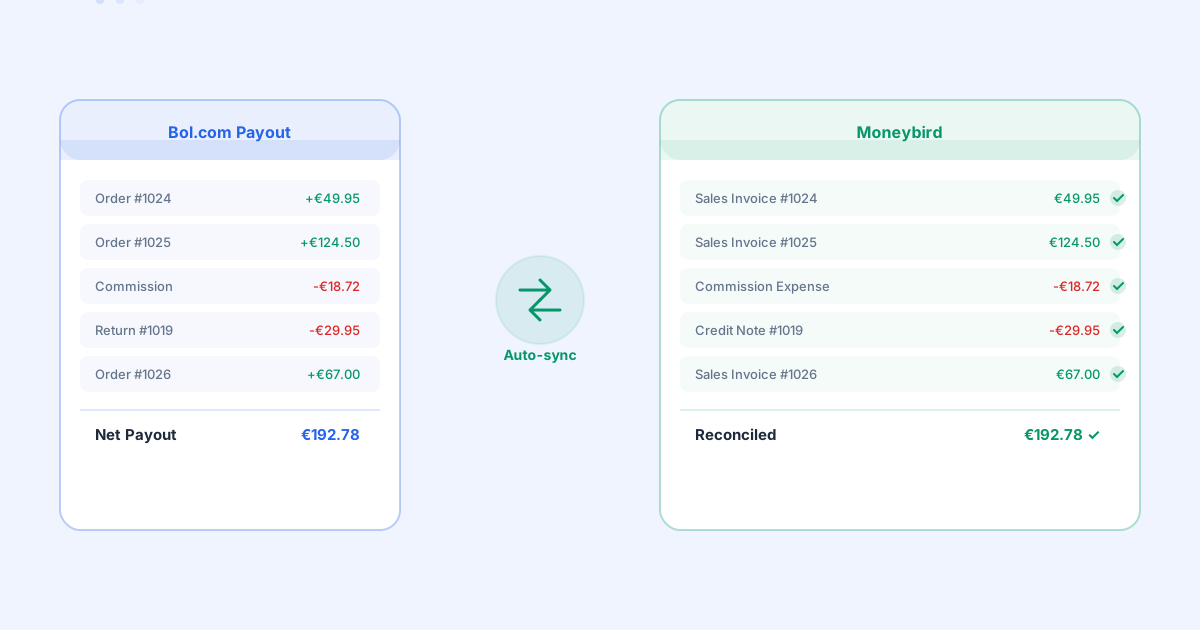
The total on the payout specification matches the exact amount Bol.com transfers to your bank account. Our article on reconciling Bol.com payouts in Moneybird explains how to tie that amount to your bookings correctly.
Overview of All Fee Types
The payout specification contains the following main categories:
| Fee Type | Nature | VAT Rate | Moneybird Account |
|---|---|---|---|
| Sales revenue | Revenue | Product-dependent | Bol.com revenue |
| Sales commission | Expense | 21% | Bol.com sales commission |
| Service fee | Expense | 21% | Bol.com service fee |
| Shipping label | Expense | 21% | Shipping costs |
| FBB logistics costs | Expense | 21% | FBB logistics costs |
| FBB storage costs | Expense | 21% | FBB storage costs |
| Return shipping costs | Expense | 21% | Return costs |
| Growth bonus | Revenue/discount | 21% | Bol.com growth bonus |
| Advertising costs | Expense | 21% | Bol.com advertising |
| Corrections | Variable | Variable | Depends on type |
We cover each category in detail below.
1. Sales Revenue
Sales revenue is the amount customers pay for your products, including any shipping costs charged to the customer. This is the gross selling price per order.
How to book in Moneybird?
Create a sales invoice per order or per period, depending on your workflow. Post the revenue to a Bol.com revenue account, split by the applicable VAT rate:
- 21% for most product categories
- 9% for books, magazines, food products, and certain other product groups
- 0% for intra-Community supplies to VAT-registered buyers in other EU countries
Our article on VAT rates for Bol.com products covers the applicable rates per category in detail.
2. Sales Commission
Bol.com withholds a commission percentage on every order, calculated on the selling price. The percentage varies by product category and typically ranges from 8% to 20% including VAT.
What appears on the payout specification?
A negative line per order labeled “Commission” or “Sales commission”. The amount includes 21% VAT regardless of the VAT rate on the product itself.
How to book in Moneybird?
Book commissions as a purchase invoice with Bol.com as the supplier. Use a dedicated expense account such as “Bol.com sales commission”. The VAT rate is 21% and fully deductible as input tax.
For a full walkthrough of booking commissions correctly, see our article on booking Bol.com commissions in Moneybird.
3. Service Fee
The service fee is a fixed charge Bol.com levies for access to the Plaza seller platform. It is billed monthly or per payment period.
What appears on the payout specification?
A negative line labeled “Service fee” or “Subscription costs”. The amount is a fixed rate per period, independent of order volume.
How to book in Moneybird?
Book the service fee as a purchase invoice or expense entry with Bol.com as the supplier. Use a dedicated account “Bol.com service fee” or “Platform costs”. The VAT rate is 21%, fully deductible.
Note: the service fee is a platform cost, not a selling cost. Keep it administratively separate from commissions so you get a clean view of your selling margins versus your platform overhead.
4. Shipping Label (FBR)
If you sell as an FBR (Fulfillment by Retailer) seller and use Bol.com-generated shipping labels for your own shipments, the label costs are settled through the payout specification.
What appears on the payout specification?
A negative line per order or batch labeled “Shipping label” or “Transport costs”. The rate depends on parcel weight and carrier.
How to book in Moneybird?
Post shipping label costs to a “Shipping costs” expense account. VAT rate is 21%, deductible as input tax.
If you also receive separate invoices from the carrier directly, make sure you do not book the same costs twice. Use either the Bol.com payout specification or the carrier invoice, not both.
5. FBB Logistics Costs
Sellers using FBB (Fulfillment by Bol.com) pay logistics fees for Bol.com picking, packing, and handling returns on their behalf.
What appears on the payout specification?
Multiple lines labeled “Handling costs”, “Pick and pack costs”, or “Return handling costs”. These are calculated per order based on weight and product type.
How to book in Moneybird?
Use a dedicated account “FBB logistics costs”. These are business expenses at 21% VAT, fully deductible.
It is good practice to keep FBB logistics costs separate from sales commissions so you can see clearly what you pay Bol.com for fulfillment versus what you pay for use of the sales channel.
6. FBB Storage Costs
FBB sellers pay storage fees for inventory held at Bol.com’s distribution center. Costs are calculated based on volume (cubic meters) per week.
What appears on the payout specification?
A negative line per payment period labeled “Storage costs”. The amount depends on the number of weeks and occupied volume.
How to book in Moneybird?
Post storage costs to a separate account “FBB storage costs” or “Warehouse costs”. VAT is 21%, deductible as input tax.
Tip: high storage costs signal that your inventory is not turning fast enough. By booking storage costs separately, you quickly see when they are rising and can take corrective action in time.
7. Return Shipping Costs
Returns sometimes generate additional costs: for example, sending products back to you as an FBR seller, or return handling at FBB.
What appears on the payout specification?
Negative lines labeled “Return shipping costs”, “Return handling”, or “Return shipment”. The amount varies per return.
How to book in Moneybird?
Post return shipping costs to a “Return costs” account or combine them with other shipping costs. VAT is 21%, deductible.
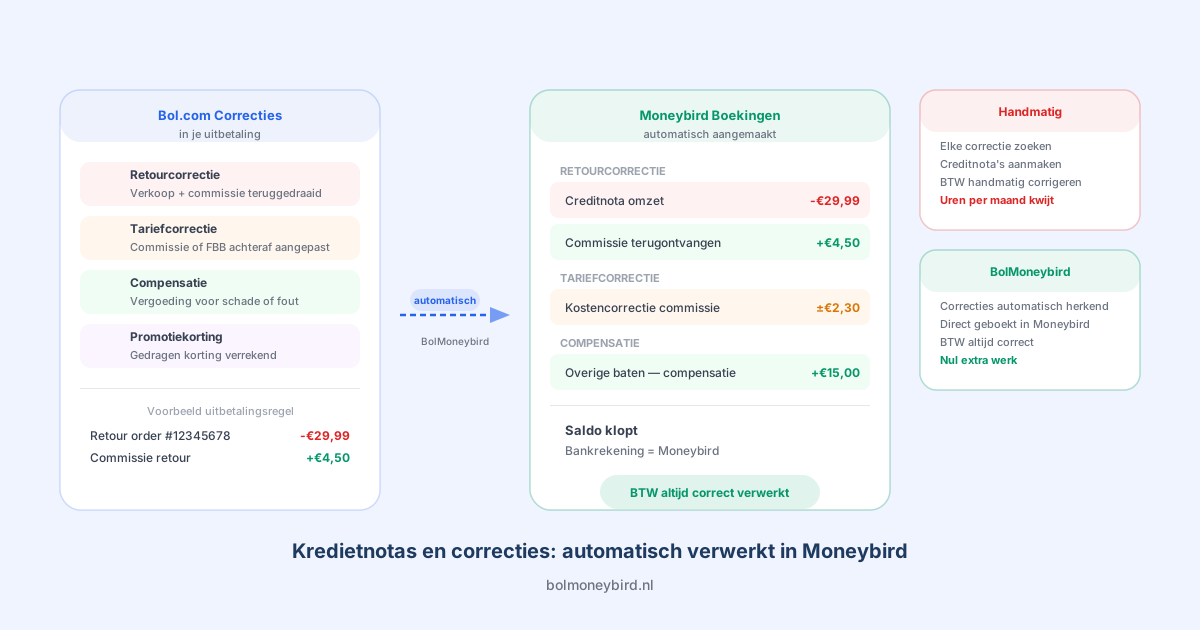
In addition to the return shipping costs, you also need to correct the original sales invoice with a credit note if the order was returned. The process for this is covered in our article on recording returns in Moneybird.
8. Growth Bonus
The growth bonus is a discount Bol.com grants to sellers who reach a certain sales volume or service level. It is effectively a credit against the commissions you owe.
What appears on the payout specification?
A positive line labeled “Growth bonus” or “Sales performance bonus”. The amount is a percentage of the commission you paid in the relevant period.
How to book in Moneybird?
There are two common methods:
- As a correction against commissions: book the growth bonus as a negative cost entry on the same account as commissions. This reduces your net commission expense.
- As separate income: create a dedicated account “Bol.com growth bonus” and book the bonus as other income. This gives a clearer view of gross commission costs versus discounts received.
Method 2 is preferred when you want to analyze how much you pay in gross commissions versus how much you receive back through the growth bonus.
9. Advertising Costs
If you run Bol.com sponsored products or other ad formats, the advertising spend is settled through the payout specification. These are costs for clicks on your sponsored listings.
What appears on the payout specification?
A negative line labeled “Advertising costs”, “Sponsored products”, or “CPC costs”. The amount is the total of all click costs in the payment period.
How to book in Moneybird?
Post advertising costs to a dedicated account “Bol.com advertising costs” or “Marketing costs”. VAT is 21%, deductible as input tax. Keep these costs separate from commissions: they are fundamentally different in nature and should be tracked independently.
10. Corrections and Adjustments
Occasionally the payout specification includes corrections from earlier periods: a back-payment for an order that was not settled previously, a commission rate adjustment, or a one-off compensation from Bol.com.
How to book in Moneybird?
Corrections should be posted to the same category as the original entry being corrected. A commission correction goes to the commission account; a revenue correction goes to the revenue account.
If the correction relates to an earlier period for which the VAT return has already been filed, consult your accountant on whether the correction can be recorded in the current period or whether an amended return is needed.
VAT on All Fee Types
One recurring point: almost all costs Bol.com charges are subject to 21% VAT. This applies even to the commission on products that carry a 9% VAT rate. Bol.com is rendering a service to you as a seller, and that service is always taxed at the standard rate.
The VAT on these costs is almost always fully deductible as input tax, provided you have VAT-taxable revenue. This means you effectively only carry the net amount (excluding VAT) as an actual cost.
Manual Processing Versus Automation
If you process the payout specification manually, you need to categorize every line and create the correct entry in Moneybird. With dozens or hundreds of lines per payment period, this is time-consuming and error-prone.
BolMoneybird processes the payout specification automatically. Every fee type is recognized and posted to the correct account with the correct VAT rate. You do not need to type anything manually: the CSV export from Bol.com is translated directly into accurate bookings in Moneybird.
Common Mistakes When Processing the Payout Specification
Mistake 1: Booking All Costs to a Single Account
Some sellers post all deductions to a generic “Bol.com costs” account. It is faster, but you lose visibility into the composition of your costs. You can no longer see how much you are paying in commissions versus logistics versus advertising.
Mistake 2: Forgetting to Book the Growth Bonus
The growth bonus is a positive amount on the payout specification and is sometimes overlooked. If you do not book it, your accounts will not reconcile with the deposited amount.
Mistake 3: Booking Commission as a Deduction from Revenue
Some sellers reduce revenue rather than creating a separate purchase invoice for commission. This is accounting-wise incorrect and distorts your gross margin figures.
Mistake 4: Not Retaining the Payout Specification
The payout specification is a financial document that must be retained for seven years (Dutch tax law). Always save the PDF and upload it as an attachment to the relevant bookings in Moneybird.
Reconciling After Processing
Once you have booked all lines from the payout specification, the total of your entries should match the amount Bol.com transferred to your account. If there is a discrepancy, an entry has been missed or entered incorrectly.
Check in Moneybird that the Bol.com bank transaction is linked correctly to the relevant entries. If the balance does not match, go through the payout specification line by line and compare with your bookings. In most cases the difference comes down to a missing line or a rounding difference.
Conclusion
The Bol.com payout specification contains far more than just commissions. By understanding and correctly booking every fee type, you get a complete and accurate picture of your financial position. You can analyze your margins, file your VAT return correctly, and reconcile your bookkeeping with your bank statement.
Want to automate the entire process? BolMoneybird processes your payout specifications fully automatically: every fee type on the right account, with the right VAT rate, without any manual work. You always have up-to-date, accurate bookkeeping in Moneybird.
Tags
Share