How to Book Bol.com Promotions and Discounts in Moneybird
BolMoneybird Team
team@bolmoneybird.nl
Bol.com sellers who participate in discount campaigns, Deals of the Week, or their own promotions often get confused about how to book them. Is a discount a cost item, a revenue correction, or something else entirely? And how do you handle this correctly in Moneybird without throwing off your VAT return? This article breaks it down clearly.
What types of promotions does Bol.com offer?
Bol.com gives sellers several ways to promote their products:
Bol.com-initiated campaigns:
- Bol.com Deals of the Week (DVDW) — you fund the discount, Bol.com selects the products
- Seasonal sales like Black Friday, Sinterklaas, and Easter
- Bol.com Outlet — reduced prices for returned items
Seller-configured promotions:
- Custom discount codes (via the seller portal)
- Temporary price reductions on specific items
- Bundle deals (buy 2, get 1)
Advertising costs:
- Sponsored Products (paid advertising within Bol.com)
- These are separate costs deducted from your payout
In our article about booking commissions in Moneybird we explained how the Bol.com payout is structured. Promotion costs form their own category within that.
The bookkeeping logic behind discounts
Many sellers think of a discount as an extra cost. Accounting-wise, it’s more nuanced:
Option 1: Discount as a revenue reduction (most common)
Say you normally sell a product for €50. Due to a promotion, you sell it for €35. The customer pays €35 and receives an invoice for €35. Your revenue is €35 and there is no separate cost entry for the discount.
Journal entry:
- Bol.com revenue: €35 (including 21% VAT = €7.23 VAT)
- VAT payable: €7.23
This is the simplest method and the most widely used. The discount is not separately visible — the reduced price appears directly on the invoice.
Option 2: Gross revenue minus discount line (more transparent)
Some sellers prefer to record the full catalogue price as revenue and the discount as a separate cost line, making it clear how much discount was given in total.
Journal entry:
- Bol.com revenue: €50
- Discounts and promotions: -€15 (cost)
- Net revenue: €35
This provides more insight but requires more manual work and adjustments to your Moneybird setup. The VAT outcome is identical to option 1.
Advice: for most Bol.com sellers, option 1 is the simplest and fiscally correct approach. Discuss with your accountant which method suits your situation.
Bol.com Deals of the Week: who pays the discount?
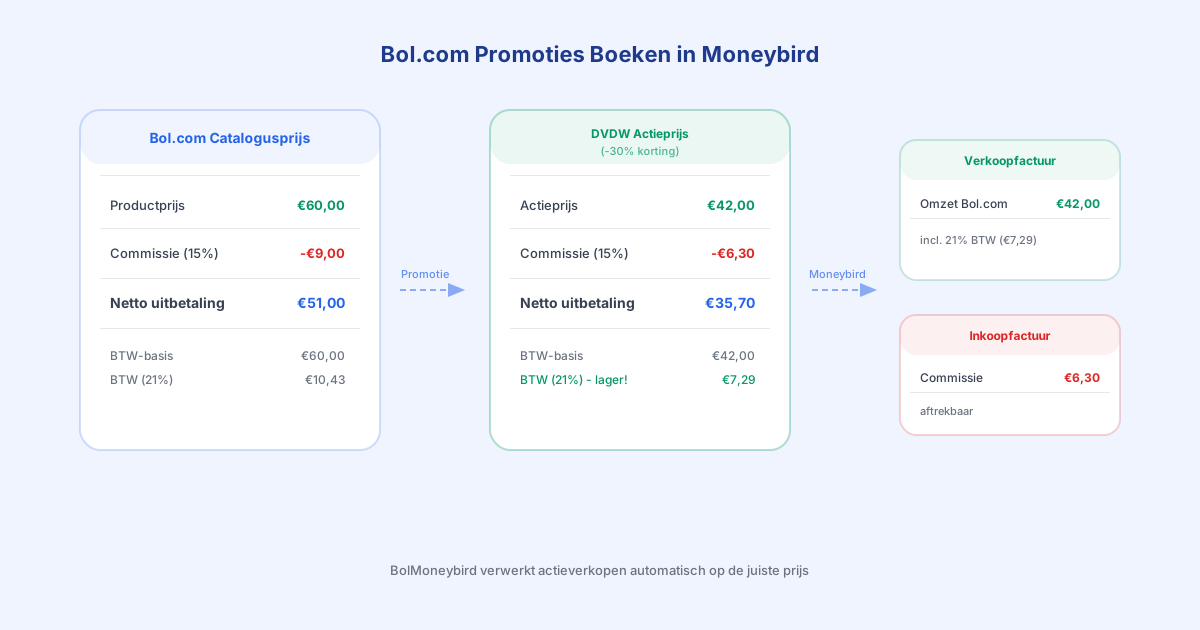
With Bol.com Deals of the Week, you as the seller finance the discount. Bol.com charges a lower selling price and the commission is calculated on the reduced price. Your payout reflects the reduced price minus commission.
Practical example:
- Normal price: €60
- DVDW price: €42 (30% discount)
- Commission (15% of €42): €6.30
- You receive: €35.70
In your bookkeeping, BolMoneybird automatically invoices the amount the customer paid: €42. The €6.30 commission is booked separately as a cost. There is no separate entry needed for the €18 discount gap, unless you are using the gross method.
Advertising costs (Sponsored Products)
Sponsored Products is different from a promotional discount. Here you pay Bol.com an advertising fee for extra visibility. These are ordinary business costs.
In the Bol.com payout, this appears as a separate deduction: Sponsored Products costs. BolMoneybird processes this as a purchase invoice from Bol.com in Moneybird, under the “Advertising costs” category.
Read more about this in our article on Bol.com advertising costs in Moneybird.
Booking correctly in Moneybird: step by step
Step 1: Check your Bol.com payment specification
Download the payment specification from the Bol.com seller portal (Finance > Payouts). This shows all components of your payout, including:
- Total sales (reduced prices for promotional items)
- Commissions per transaction
- Advertising costs (Sponsored Products)
- Any promotional contributions (in specific campaigns)
Step 2: Create sales invoices
For every sale, BolMoneybird automatically creates a sales invoice in Moneybird. Invoice amounts reflect the price paid by the customer (including any discounts). You don’t need to do anything manually here.
Step 3: Verify cost categories
In Moneybird, commissions and advertising costs appear as purchase invoices. Check that the categorization is correct:
- Commissions: expense category “Marketplace commissions” (or similar)
- Advertising costs: expense category “Advertising costs”
- Shipping costs: expense category “Shipping costs”
Step 4: Reconcile with your payout
At the end of each payout period, reconcile the received payout with the booked transactions. This is the standard Bol.com payout reconciliation in Moneybird. If promotions are correctly booked, everything lines up cleanly.
VAT on discounts: what you need to know
A common question: if I give a 30% discount, can I also pay 30% less VAT?
Yes, that’s correct. VAT is calculated on the price actually received. If your product normally costs €60 and you sell it for €42, you calculate VAT on €42, not €60. At 21% VAT, that’s €7.29 instead of €10.43.
This is an often-overlooked benefit of promotional sales: you pay less VAT on reduced revenue.
Note: this applies to discounts on the selling price. If Bol.com pays you a separate promotional contribution (a special arrangement in certain campaigns), the VAT treatment may differ. Consult your accountant if in doubt.
What does BolMoneybird handle automatically?
BolMoneybird retrieves all order information from the Bol.com Retailer API, including the actual price paid. This means:
- For a promotional sale at €42, BolMoneybird creates an invoice for €42
- The correct VAT rate is automatically determined based on product category
- Commissions are calculated on the reduced price and booked separately
- Advertising costs are processed from the payment specification
You don’t need to make any manual adjustments for promotional sales. BolMoneybird handles promotions and regular sales identically: the reduced price is the actual transaction price and is booked as such.
Common mistakes with promotions
Mistake 1: Double booking Some sellers book both the full price and the discount separately, causing revenue to appear too high. BolMoneybird prevents this by always using the price actually received.
Mistake 2: Wrong VAT on discounts Calculating VAT on the catalogue price instead of the selling price. This leads to overpaying VAT.
Mistake 3: Booking advertising costs as a revenue correction Advertising costs are business expenses (debit), not a correction to revenue. They belong in a separate cost category.
Mistake 4: Forgetting Bol.com promotional contributions Some Bol.com campaigns are partially funded by Bol.com itself. You receive an additional payment in your payout. Don’t forget to book this contribution as revenue or as a correction.
Summary
Promotional sales on Bol.com are booked the same way as regular sales, but at the reduced price. It’s simpler than it sounds:
- Sales invoice at the price the customer paid
- VAT on the reduced price
- Commission as a separate cost entry
- Advertising costs (Sponsored Products) as a separate cost entry
BolMoneybird handles this automatically. Whether you join a Deals of the Week campaign, set up your own promotion, or actively advertise on Bol.com, the integration processes all transactions correctly in Moneybird. So you’re always ready for your VAT return, even during peak promotional periods. Start today with BolMoneybird and let the bookkeeping take care of itself.
Tags
Share